

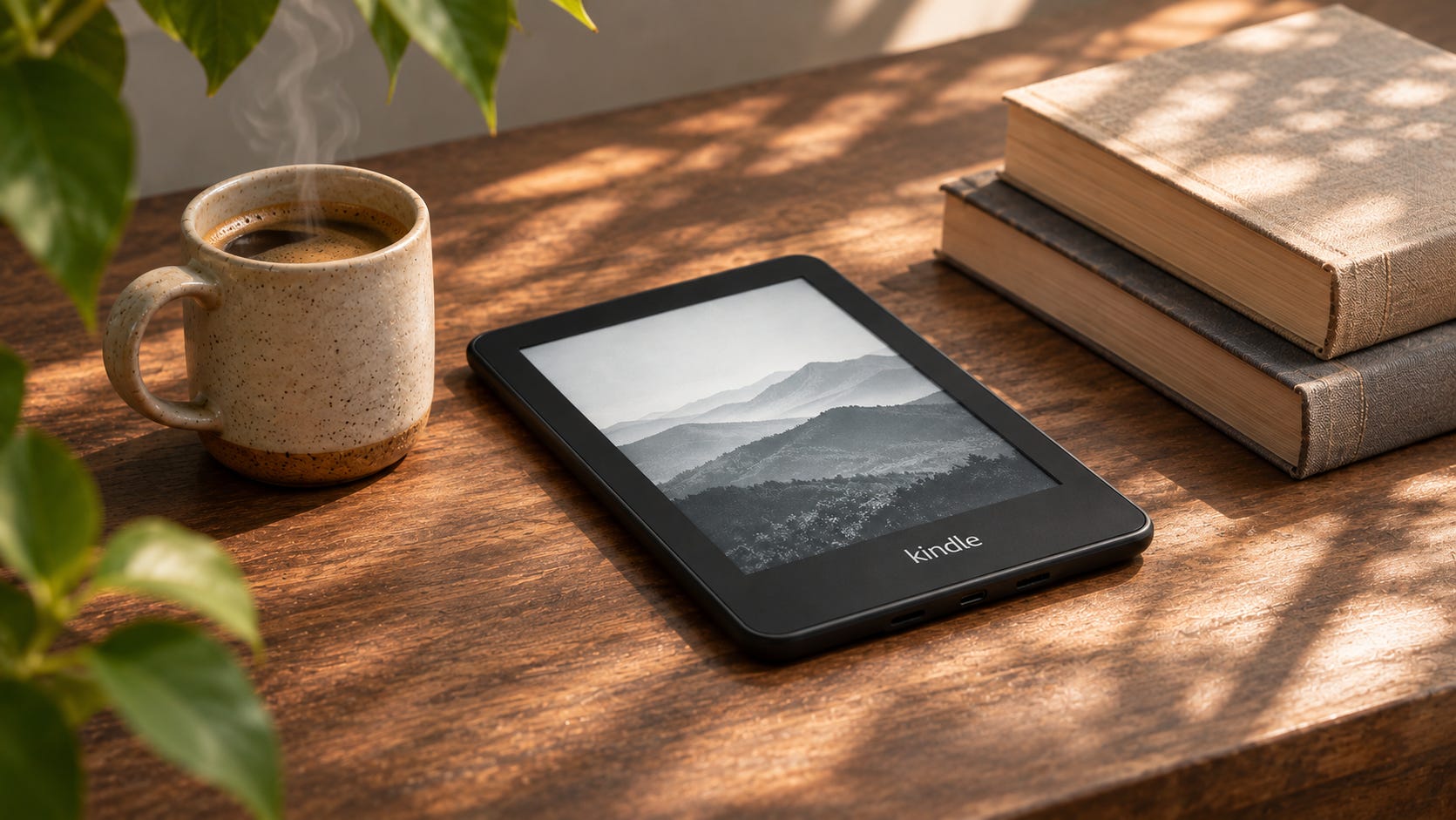
Reading is one of the best things you can do for your English. It is also where many learners get stuck. The book feels hard, the dictionary is on another device, and after a page or two the book goes back on the shelf.
An ereader, or a reading app on your phone, removes most of that friction. You carry a whole library on one device. You tap a word and the meaning appears. Every word you look up is saved for later. You stay inside the story, and staying inside the story is where the learning happens.
Books Are Easy to Find
The Kindle Store has more English books than you could read in a lifetime, and most titles let you download a free sample first. Read the sample before you buy. If you follow most of it, the book is a good fit. If you reach for the dictionary every second line, save that book for later.
You are not tied to one store either. Other ereaders, such as Kobo, open books from other shops and from your library.
Free Books Are Easy to Get
Project Gutenberg offers more than 75,000 free ebooks, mostly classics whose copyright has expired. Standard Ebooks offers carefully formatted editions of classics too. Both give you files you can keep.
On a Kindle, the easiest way to load them is Send to Kindle. You can use the browser extension or the app, or you can email the file to your Kindle address. Amazon has supported EPUB files through Send to Kindle since 2022, so most downloads work without any conversion.
Borrow eBooks From a Library
Many libraries now lend ebooks, and some let you borrow them for free from home. What’s available depends on where you live, so it’s a good idea to check what your local library offers.
If your library offers Libby
The most common library app is Libby. Download it on your phone, add your library and enter your library card number. Then you can borrow a book and start reading straight away. When the loan ends, the book returns itself, so there are no late fees.
Libby lets you borrow new and popular books, and many libraries lend audiobooks through it too. Listen to the audiobook while you read the ebook, and you get reading and listening practice together.
You can read your loans in the Libby app on your phone, or on a newer Kobo reader, which has Libby built in. Sending loans straight to a Kindle works in the United States only.
Look for something similar
Libby is most common in places like North America, the UK, Australia and New Zealand. If your library doesn’t use it, it may offer a different app, such as BorrowBox or Hoopla. Ask at your library or check its website.
In some countries, the British Council runs a digital library with thousands of English ebooks and audiobooks. It isn’t free, but a year of membership usually costs much less than buying the same books. Search for “British Council digital library” and your country to see if it’s available where you live.
If none of these are available to you, don’t worry. Project Gutenberg and Standard Ebooks are free in every country, and they give you more books than you could ever read.
It Goes Wherever You Go
An ereader is light and slim, and the battery lasts for weeks. The screen reads like paper, so sunlight does not wash it out. You can also read on your phone with the Kindle app, which means ten minutes in a queue or on a train can become ten minutes of English.
Small pockets of time add up. Twenty minutes here and there across a week is more reading than most learners manage when a book sits on the bedside table waiting for a quiet evening.
Your Phone Works Too
You don’t need to buy an ereader to start. The phone in your pocket can do most of the same things.
The Kindle app is free on iPhone and Android. Your books and your reading position sync between your phone and your Kindle, so you can read a few pages on the bus and carry on at home. Press and hold a word, and the dictionary appears, just as it does on a Kindle.
If you don’t use Kindle, other free apps work well too. Apple Books and Google Play Books both have a built in dictionary. The Kobo app and the Libby app let you read ebooks and library loans on your phone.
A phone has a few downsides. The bright screen is harder on your eyes during long reading sessions, and messages can pull you out of the story. Turn on do not disturb while you read, and use a darker background in the evening.
Some features, like Vocabulary Builder and Word Wise, work differently in the apps or may not be there at all. Check the settings in your app to see what it offers.
Tap a Word and See the Meaning
This is the feature that changes how you read. On a Kindle or in the Kindle app, press and hold a word and the dictionary appears on screen. You read the meaning, close the box and carry on with the same sentence. It takes a few seconds.
Smart Lookup adds a little more. Alongside the dictionary entry, you can see Wikipedia information and notes about the characters, and you can swipe to reach a translation. Other ereaders have their own lookup tools. The menus differ from device to device, so check how yours works.
Looking things up on paper breaks your concentration. Looking things up on an ereader barely does. You keep the story in your head, and the new word arrives with its context attached.
Install a Dictionary That Fits Your Level
A Kindle comes with a built in dictionary, and you can add others and switch between them. Many learners never do this, and a few minutes of setup pays off every time you read.
At an intermediate or advanced level, an English to English dictionary usually helps you more. You read the definition in English, which gives you extra reading practice with every lookup. A bilingual dictionary is quicker when one word blocks a whole page. Either is fine, and you can keep both.
How you install a dictionary depends on your model and on whether you use the device or the app. Search for “add a dictionary to Kindle” with your model name and follow the steps for your device.
Let Your Word List Build Itself
Kindle has a feature called Vocabulary Builder. Every word you look up in the dictionary is added to it automatically. You do not need to copy anything or stop to write notes.
Open Vocabulary Builder and you see your list. Tap a word and you see its meaning and the sentence where you met it. That sentence is the useful part, because a word you meet in context is easier to remember.
There is a flashcard mode too. It shows each word with the sentence from your book. When you know a word well, mark it as mastered and it leaves your active list.
Vocabulary Builder is on by default on current Kindles, and you can switch it off in the settings if you prefer. Older models may not have it. If you read on a phone or tablet, LingQ takes a similar approach. You can read with audio, save the words you look up, and import your own articles to read.
Word Wise Gives Extra Help
Word Wise shows short, simple definitions above harder words in the text, so you do not need to stop at all. It is available on many English books, including popular titles like The Hunger Games.
A slider lets you set how many hints you see. Start with plenty of help and turn it down as your vocabulary grows. If you still want the full entry for a hinted word, tap it.
Choose a Book at the Right Level
The best book is one you want to finish. A story you enjoy keeps you reading on the days you feel tired. A book that sounds impressive but bores you does not.
As a guide, you should understand most of each page, and meet a few new words on it. If you meet a new word every line or two, pick an easier book. If you meet almost nothing new, you can move up. Young adult novels are a good place to start, because the language is natural and the stories pull you along.
A Simple Way to Read Every Day
Read for twenty minutes a day, ideally at the same time each day. Link it to something you already do, like your morning coffee or the bus ride home.
Look up a word only when it stops you from following the sentence. Skip the rest and keep going. Many words become clear after you meet them a few times, and you will enjoy the book more.
Once a week, open Vocabulary Builder and go through the flashcards. Mark the words you know as mastered. After a few months you will have a personal list built from books you chose yourself.
Talk About What You Read
A book gives you something to talk about. Tell a tutor what happened in the last chapter, what you thought of a character, or what you would have done differently. That is natural conversation, and it uses the vocabulary you have just collected.
You can find tutors on iTalki, and you are welcome to book a lesson with me through my iTalki profile. My lessons are relaxed and conversational, with plenty of room for mistakes.
Charge your ereader or open a reading app on your phone, choose one book, and read for twenty minutes tonight. That is all it takes to begin.
Got a question about learning English? Send it my way and I might answer it in a future post.
If this was useful, give it a like or restack it so other learners can find it.
Happy reading, and talk soon.
Richard, English teacher in Auckland, helping you read your way to fluency without studying grammar
Tools I Recommend
Flexling for daily speaking practice through sentence repetition
LingQ for reading with audio, saving words and importing your own texts
iTalki for finding a tutor and regular conversation practice
My English lessons on iTalki for relaxed, conversational classes with me
Some of the links in this post are affiliate links. If you sign up through them, I may earn a small commission at no extra cost to you. I only recommend tools I use and believe in.